





Software

Open the program you are updating.
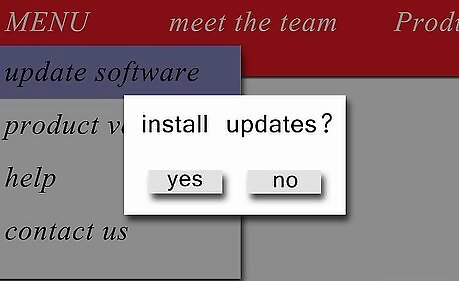
Look through the program. Open tabs and menus, and find a button that will install updates (or click the automatic updates box), and allow the updates for the software to install. You don't have to do a full upgrade of software as long as updates are available. However, in some cases, as in Microsoft Office, it may be the better option.

Understand what is happening. This isn't essential, just like it isn't essential for a driver to know what is happening under the hood to be able to drive, but it helps to know so that you can enable more options for the best performance. The general idea is that the program is contacting online sources and seeking out new patches for bugs and updates for ease of use, etc. In web browsers, more security measures and better download managers may be given out. In antiviral programs, more information about viruses may be added to the virus database, etc. For more information about what is being updated, refer to owner's manuals, download details, and the site at which the download is being made.
Operating System
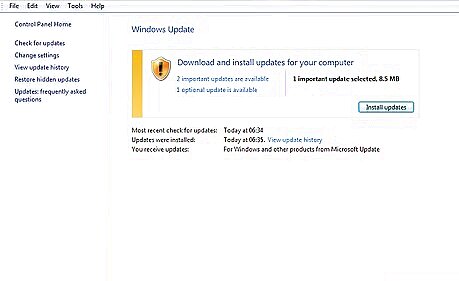
Download service packs. Before upgrading your operating system to a newer one (or if you have the latest operating system and would like to keep it as up to date as possible) you should download service packs and updates whenever they are available. If you have Automatic Updates enabled, then your computer will alert you when they are ready. If you are running a version of Linux, and another version of your distro was just released, you don't need to upgrade to it unless support for your version has been terminated. It can help, but there's no need to go to all the trouble.

Be sure your computer is capable of running the new operating system. You should know the specifications of your computer's performance before doing anything related to hardware or software on your computer. Operating systems have minimum requirements for the hardware that it uses. With RAM, be sure to at least double the minimum RAM requirements, and with processor speed, be sure to double, or preferably triple, the required processor speed. More about hardware can be found in the Hardware section.
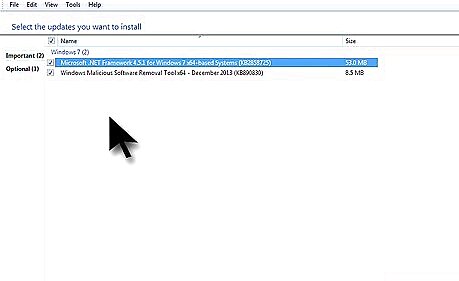
Save what you would like to save. This is very important, since everything on the disk will be destroyed in the process of reinstalling the operating system.

Install your new operating system.
Hardware

Research your computer. Find out what are the recommended upgrades for it. Then look into the upgrades you would like. Then find out what is compatible with your system, operating system, and the prices. If you are using a custom built computer, research the motherboard, and what works well with it. Contact tech support forums if necessary.
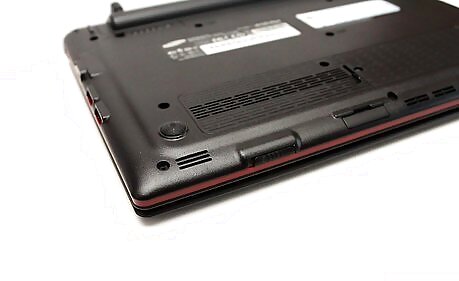
Pick and choose. You don't need to upgrade everything in your computer to be satisfied, but only what will suit your needs. Ask tech support forums what they would recommend for your needs. Remember that you don't always have to do what they say, though, the final decision is yours. Try to be sure that the upgrades will suit your needs, so if you multitask heavily, try upgrading the RAM, if you play games, graphics card, and (if it is a laptop) if you are constantly traveling, the battery, etc.
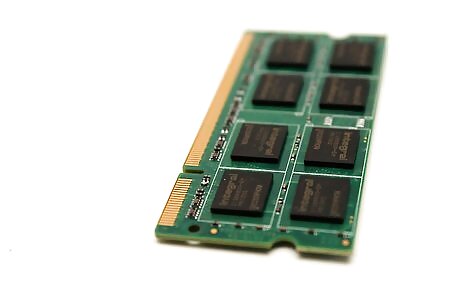
Buy the hardware. You can buy hardware from many computer wholesale sites, the manufacturer of your computer, or at a local computer electronics store.
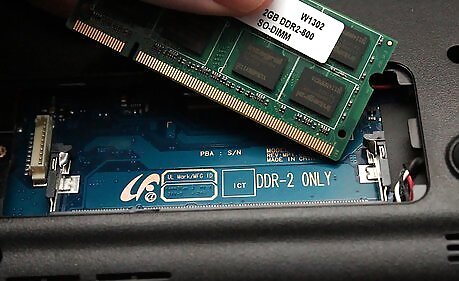
Install the hardware. Take the new hardware out of the box, read all of the instructions. Then disconnect everything from your computer, and open the case. Ground yourself by touching a large piece of metal such as the case itself, then find the hardware being upgraded. Read Build a Computer for specific instructions on how to insert hardware. Once you have finished inserting it, reboot the computer and install the drivers using the CD that came with it, or by following the link that came with the hardware to the drivers. Or, you can contact a professional to install the hardware for you.












Comments
0 comment