



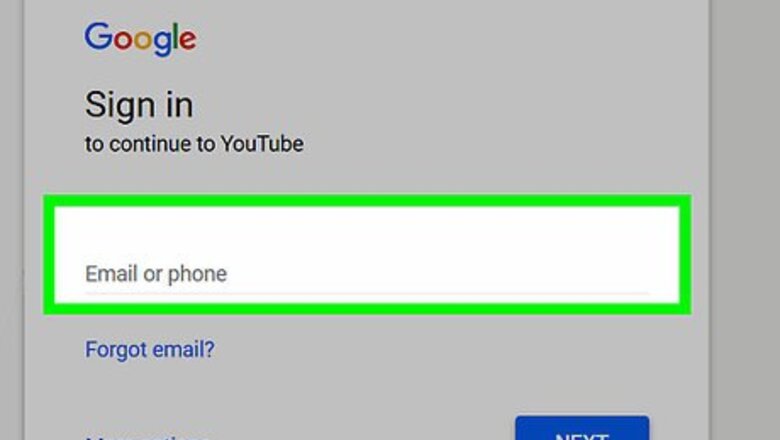

- Click the Settings icon that looks like a gear on the YouTube video you're watching.
- Select a faster speed from the "Speed" menu, like 1.5 or 1.25.
- Alternatively, press "Shift + <" to speed a video up while you're watching it without needing to click through menus.
Checking Your Default Player
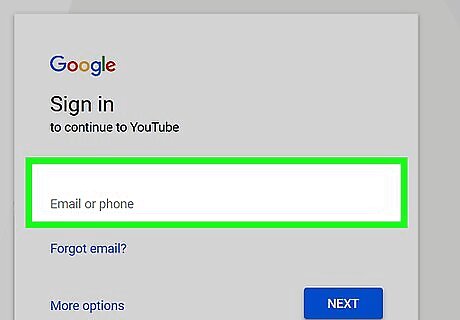
Go to YouTube.com. You may be asked to sign into your Google account if you haven’t already.
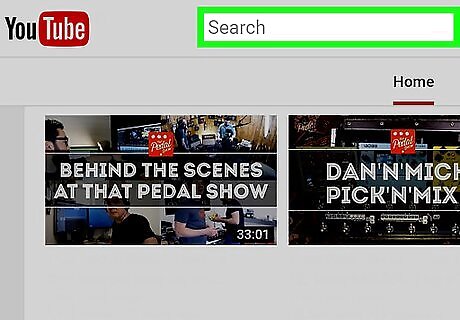
Find a video you’d like to play. You can also follow a link to a video from another site.

Look for the Settings icon along the bottom right edge of the video. The icon is a circular cog.
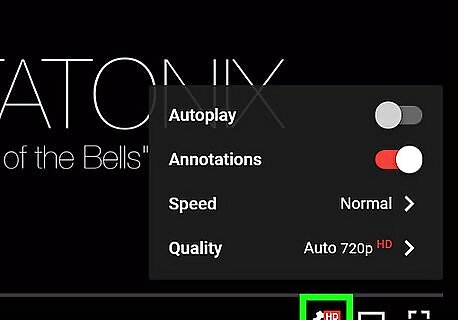
Click on the icon. If drop-down boxes pop up to change speed and quality settings you can continue with the second part. If not, you will need to change your default player.
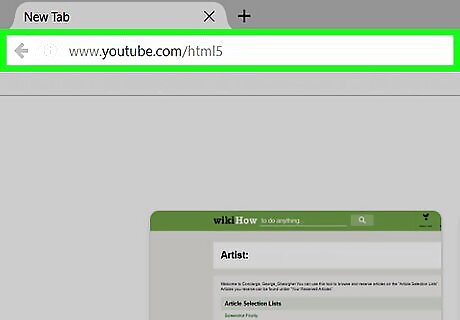
Paste the following into your browser’s address bar: www.youtube.com/html5. Read the information, then click on the button that says, “Request the HTML5 player.” Click the button that says “Use the default player.” This will allow you to replace the Flash player in most major browsers.
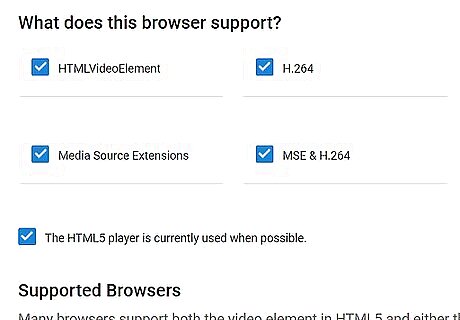
Save changes.
Speeding Up YouTube Videos
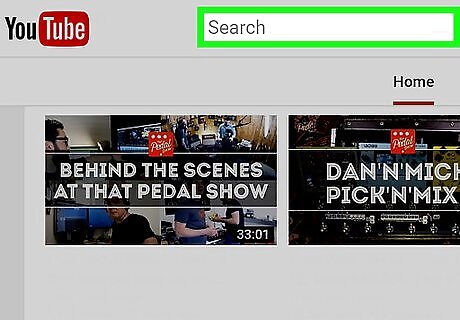
Open a new browser window or return to the video you want to load.
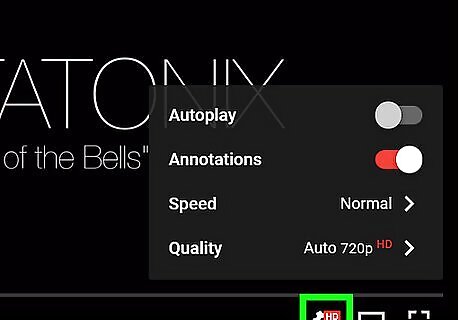
Click on the Settings icon. Find the drop-down box that indicates speed.
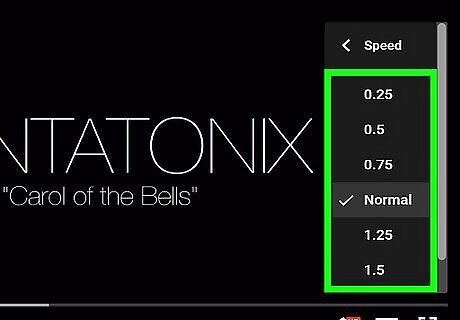
Scroll to your preferred speed, such as 1.25, 1.5, or 2 times the normal speed.

Click “Play.” Your video will play at a faster rate.











Comments
0 comment